 NovaPoint
Auto Pin
Auto Pin is an automatic corner tracking tool that uses the built-in CC Power Pin effect of After Effects. Track your layer with a single click.
Mocha AE and the built-in After Effects trackers follow image features and textures. Auto Pin is specially made to track the alpha of a layer. It gives fast, setup-free tracking for artwork where texture-based tracking is difficult or not necessary.
Key features
- No setup required
- One-click workflow
- Fast analysis
- Ideal for 2D animation
- Handles large movements
- Automatic size adaptation
- Project compatibility
- After Effects integration
1. No setup required
No track points or feature selection are necessary. Click once to start tracking.
2. One-click workflow
Auto Pin analyzes the target automatically and applies the tracking result directly to CC Power Pin.
3. Fast analysis
Optimized algorithms give fast and efficient corner tracking. After the frames are cached, 4 seconds of 24 fps Full HD footage is tracked in approximately 1 second.
4. Ideal for 2D animation
Good for logos, illustrations, cel animation, motion graphics and other artwork with low texture.
5. Handles large movements
Auto Pin analyzes the full frame, so tracking stays reliable when objects move a large distance between frames.
6. Automatic size adaptation
Auto Pin applies CC Power Pin tracking between layers of different sizes without more setup. You can also make corner nulls from the tracking result.
7. Project compatibility
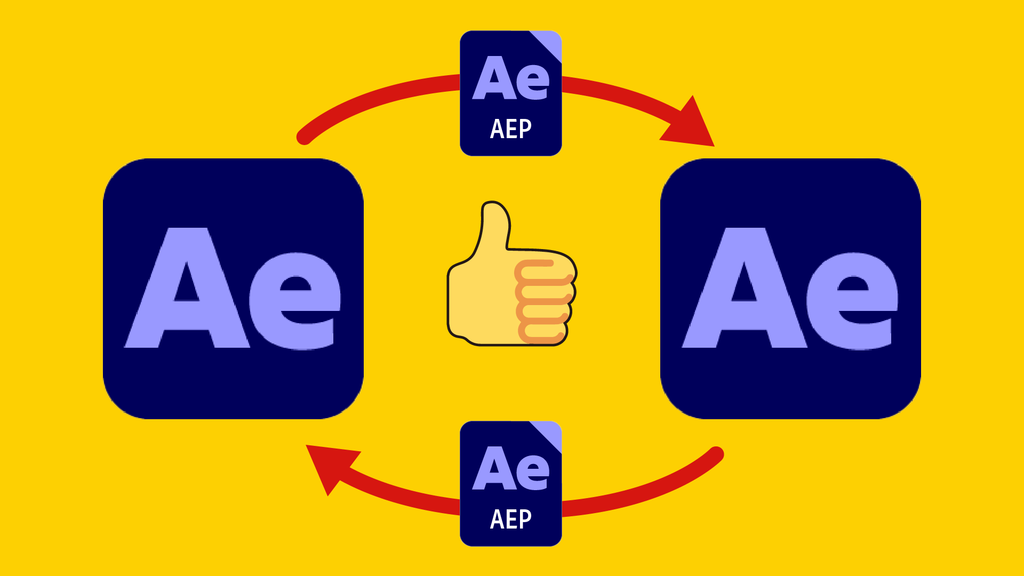
Auto Pin does not add a proprietary render effect. It makes animation data for the built-in Adobe CC Power Pin. Other people can share and render your projects without Auto Pin installed.
8. After Effects integration
An AEX plugin does the core processing and a JSX script gives the user interface. You stay inside After Effects.
How to use
Select the layers
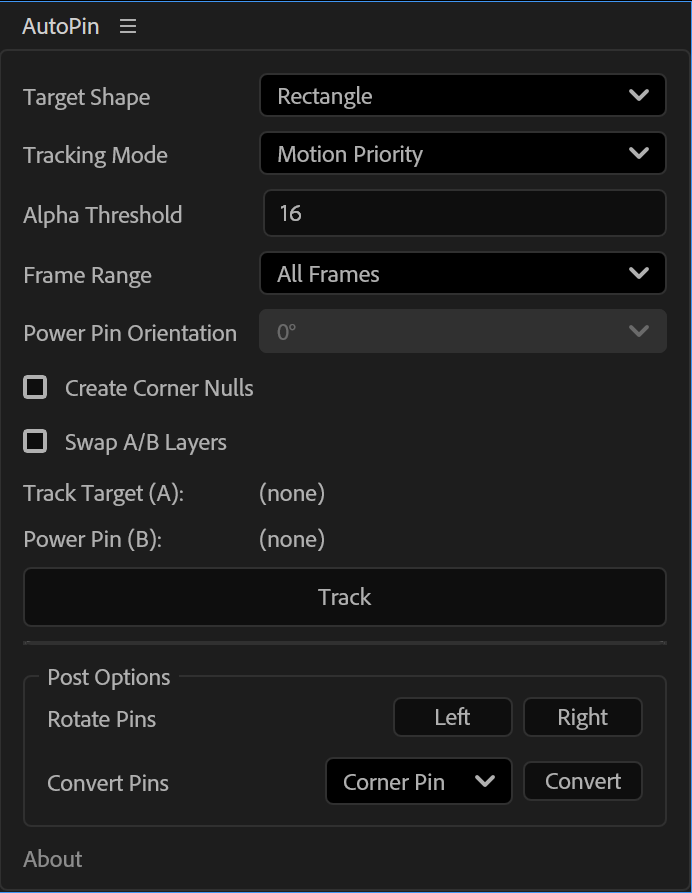
In the timeline, select the layer to track and the layer to put on it. The panel shows Track Target (A) and Power Pin (B). If they are in the wrong order, use Swap A/B Layers.
Push Track
If necessary, select Target Shape and Tracking Mode. Then push the Track button.
Adjust the result
The result goes into CC Power Pin. Use Rotate Pins to change the orientation, or Convert Pins to change to a different effect.
Parameters
| Target Shape | Rectangle: for usual rectangular targets. Organic Shape: a different method when Rectangle does not work well. |
|---|---|
| Tracking Mode | Motion Priority: a mode for movement. Rotation Priority: for large rotation that Motion Priority cannot follow. |
| Alpha Threshold | The alpha threshold value. |
| Frame Range | The range of frames to track. |
| Power Pin Orientation | The direction in which CC Power Pin is applied. |
| Create Corner Nulls | Makes more nulls at the four corners. |
| Swap A/B Layers | Changes the order of the selected layers. |
| Track Target (A) / Power Pin (B) | Shows the layers that are selected now. |
| Rotate Pins | After tracking, rotates the pins to change their orientation. |
| Convert Pins | Changes CC Power Pin to a different effect. Corner Pin and Bezier Warp are available now. |
Specifications
For the latest data, see the product page on aescripts.
| Type | AEX plugin + JSX script (UI panel) |
|---|---|
| Price | $49.00 |
| Free trial | Yes (7 days, all functions) |
| After Effects | 2023 / 2024 / 2025 / 2026 |
| OS | Windows / macOS (Intel and Apple silicon) |
| Latest version | 1.0.0 (2026-09-14) |
| Floating license | Yes (a Floating License Server is necessary) |
| Store | aescripts + aeplugins ↗ |
Free trial
The trial has all the functions of the full version for 7 days. An activation prompt shows each time you run it. Skip it manually.